
How to Start with Power Automate in Power BI? (What Actually Matters?)
Most BI setups start off looking clean foundationally. You build a few reports, connect a couple of datasets, and everything seems under control. For a while, it even feels stable.
But over time, things start to evolve. Reports get copied, Datasets start overlapping, Numbers don’t always match anymore, and suddenly, you’re not just building reports, you’re trying to keep things from drifting away. That’s usually where the need for something like Power Automate starts becoming real.
In the last edition of BI Bits, I touched on a part of this. A report can look good, but if nothing connects it to action, the value is limited. You can read it here
But even that is just one part of the problem. When most people start with Power Automate, the focus usually stays on small improvements and exploration. Sending emails when something fails. Triggering alerts and Automating simple approvals.
Useful, but they don’t really change how the BI environment behaves over time. In this article, we’re taking a different direction. Instead of focusing on small tasks, we’ll look at a few problems that keep repeating in most BI environments. Things like datasets running without purpose, numbers slowly losing trust, or important reports being treated the same as everything else.
The idea is simple. If you’re starting with Power Automate, it’s better to use it where it actually changes how your system behaves, not just where it saves a time and a few clicks.
Reality: BI environments don’t stay stable
If you’ve worked on even one or two BI projects, you’ve probably seen how this plays out. It never breaks in one go. It starts small. A new report gets added because someone needs a slight variation. Then another dataset comes in because the existing one doesn’t exactly fit. Someone leaves the team, ownership shifts, and slowly, things stop being as clear as they were in the beginning. Now think, if you have a portfolio of more than 100 reports. It can become a nightmare quite soon.
At that point, nothing looks obviously wrong. Reports are still refreshing. Dashboards are still being used. But if you look closely, you start noticing the cracks. Two reports show slightly different numbers. Datasets that look similar but aren’t really the same. No one is fully sure which version is the right one.
And this is where the real problem begins. Because now the challenge is not building reports anymore. It’s figuring out what to trust. This matters a lot in terms of the credibility of the data and reports that are exposed to wider audiences.
Most teams don’t plan for this stage. They focus on getting things built, which makes sense in the beginning. But over time, the effort shifts. You spend more time understanding the environment than actually using it. And the tricky part is, none of this triggers an alert.
There’s no failure notification. No clear signal that something is off. It just slowly becomes harder to manage.
Gap: Automation is used too narrowly
Power Automate is already there in most setups. People are using it, but mostly in a very limited way. A dataset fails, and you get an email alert. Something changes, you get an alert. Sometimes there’s an approval flow built around access or publishing.
Nothing wrong with that. It’s a good starting point but this is not improving the process from the core, and it solves immediate problems. But if you step back and look at it, all of this sits around the system, not inside it. You’re reacting to events after they happen, not really shaping how the BI environment behaves over time. And that’s the gap. I see this as using the tool just for the sake of it.
We’ve automated actions around reports, but not the system that produces them. So unused datasets keep refreshing, duplicate logic keeps growing, and trust issues slowly build up. Every time, it depends on someone noticing and stepping in, which is exactly what doesn’t scale.
Shift in Thinking: Start with system problems & not tasks
If you’re starting with Power Automate, the natural question is usually, what can I automate? That’s where most people go. You look for repetitive tasks, try to save time, and build flows around that.
But in a BI environment, that approach only takes you so far. A better starting point is to look at what keeps going wrong again and again. Not one-time issues, but patterns. Things like datasets running without purpose, reports slowly drifting apart, or no one being sure what’s actually critical.
Once you start looking at it that way, the role of automation changes. It’s not just about saving effort. It’s about putting some control around how the system behaves when no one is actively watching it.
This blog is not about explaining what Power Automate is. Instead, we’ll focus on four scenarios where you can use it to improve your processes. These are not random use cases. These are problems that show up in almost every BI setup, and where Power Automate can actually make a difference.
Data should justify its existence
One thing I see in almost every BI setup is datasets that just keep running. What do I mean by that? They refresh on schedule, consume resources, and no one really questions them. At some point, they were needed. A report depended on them, and everything made sense.
But over time, usage changes. Reports get replaced. Requirements shift. Sometimes the original use case is not even relevant anymore. The dataset stays. Nothing breaks, so no one notices. This is where automation can help in a very practical way.
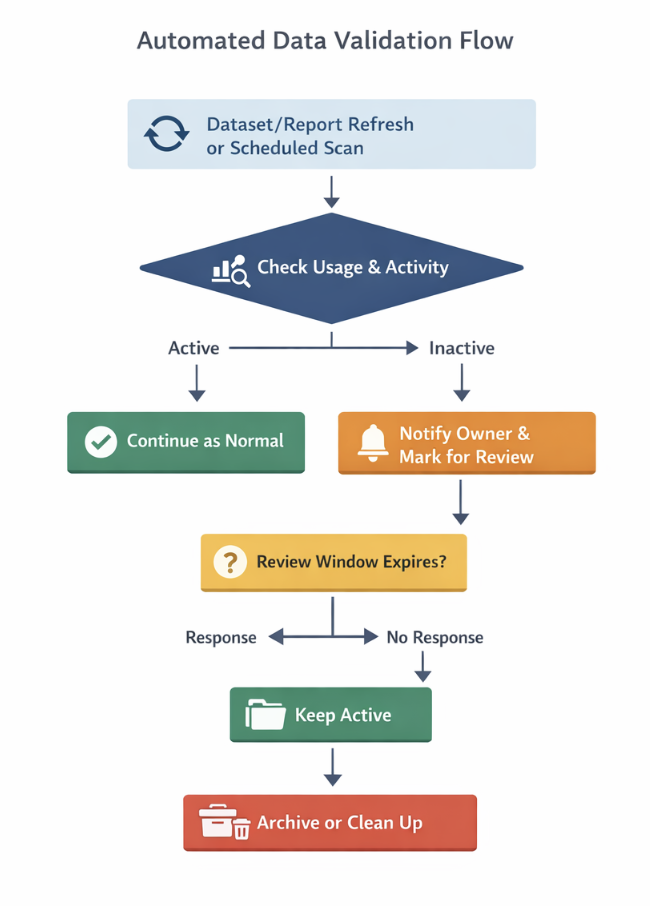
Instead of letting datasets run blindly, you introduce a simple check around usage. Every time a dataset refreshes, you also check if it is actually being used. That could be report views, dependencies, or any activity in a defined time period.
If there is no usage, you don’t just leave it there. You flag it. You notify the owner. And if it stays unused for long enough, you take action like pausing the refresh or pushing it for review. What this does is simple but powerful. The dataset is no longer just sitting there. It has to justify why it exists.
This is how your Power Automate flow will look in human language. We are not going deep into connectors here, but if this is something you want to explore further, we can break it down in detail in a follow-up blog.
Trust & Credibility doesn’t break suddenly
Another issue that shows up in almost every BI environment is around trust.
And the tricky part is, trust doesn’t break in one go. It drifts. You start with a clean dataset, then someone creates a slightly modified version for a different requirement. Then another version comes in because something didn’t match exactly.
Over time, you end up with multiple datasets that look similar but are not really the same. At first, it’s manageable. But then you start seeing it in the numbers. Two reports showing slightly different results, the same metric defined in different ways, different teams trusting different versions.
The problem is, nothing actually fails. Everything refreshes fine, so there’s no clear signal that something is off. But the confidence in the data slowly starts dropping, and that’s much harder to fix later.
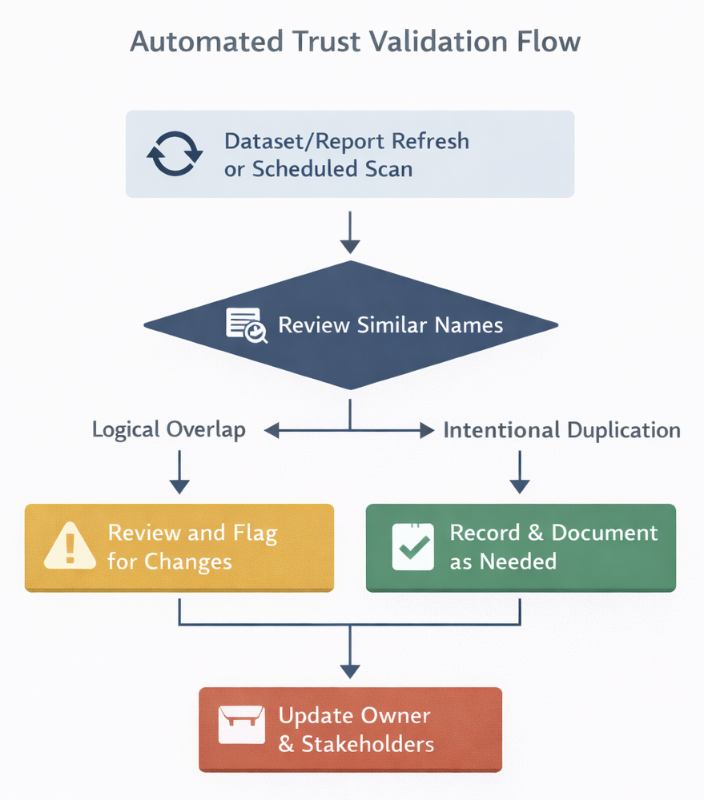
This is where automation helps, not by solving the issue directly, but by making it visible early. You can set up a simple review process that scans for datasets with similar names, the same data sources, or overlapping tables. When something looks too close, it gets flagged and sent to the owners for review.
The idea is not to stop people from creating new datasets. That’s not realistic. But at least now, duplication doesn’t go unnoticed. Someone is forced to take a call. Keep it, merge it, or clean it up. That small intervention is often enough to prevent trust from drifting further.
This is how the flow in Power Automate looks in simpler terms
Not all data is equal
In most BI environments, everything is treated the same. Every dataset refreshes on schedule. Every report sits in the same workspace. There’s no real distinction between something that is used once a month and something that drives daily decisions.
At first, this doesn’t look like a problem. But over time, it creates unnecessary noise. Critical reports don’t get special attention, and low-impact datasets keep consuming the same effort. When something breaks, everything is treated with the same urgency, which usually means nothing is actually prioritized well.
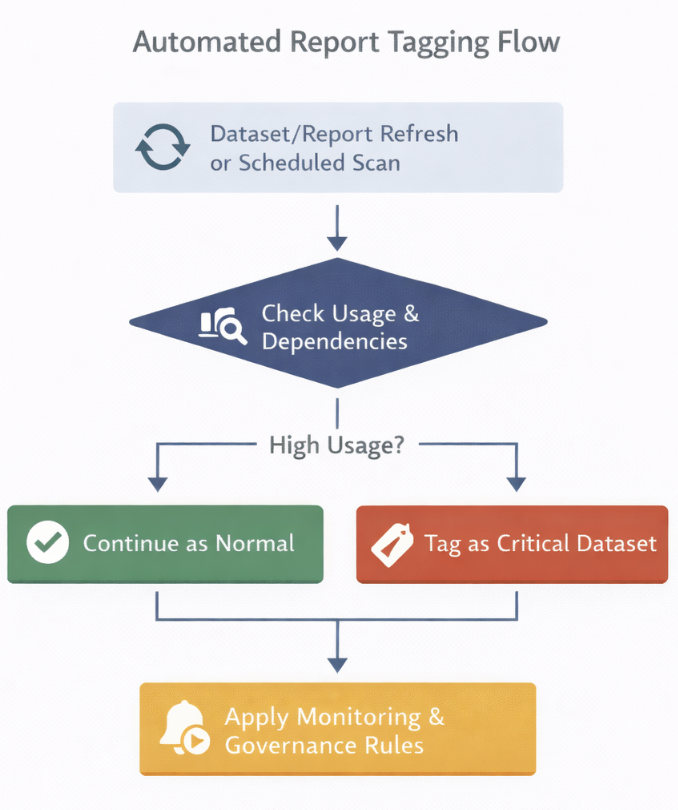
This is where automation can bring structure. Instead of treating everything equally, you start by tracking usage. Which reports are being accessed frequently, which datasets are connected to multiple reports, and which ones are used by a larger audience? Based on that, you can introduce a simple classification.
For example, if a dataset is used by multiple reports and has consistent usage over time, it gets tagged as a critical asset. Once something is marked as critical, you apply stricter rules to it. That could be refresh monitoring, failure escalation, ownership validation, or even restricting changes without review.
All of this can be handled through Power Automate. Usage data gets evaluated on a schedule. Conditions define what qualifies as critical. Once the condition is met, the dataset is tagged, and additional checks or alerts are automatically applied.
Now your effort is not spread across everything. It’s focused where it actually matters. It actually sounds easy in text, but it requires a lot of effort for a team to set it up early
Workspaces should not decay over time
Every workspace starts clean. A few reports, clearly named datasets, and everything is easy to navigate. You know what’s what. Give it a few months, and the picture starts changing.
You see multiple versions of the same report. Old datasets that are no longer used. Test files mixed with production assets. Nothing is broken, but finding the right thing starts taking longer than it should.
Most teams deal with this manually. Someone occasionally goes in, tries to clean things up, and maybe deletes a few reports. But it’s inconsistent, and it never really keeps up with how fast things grow.
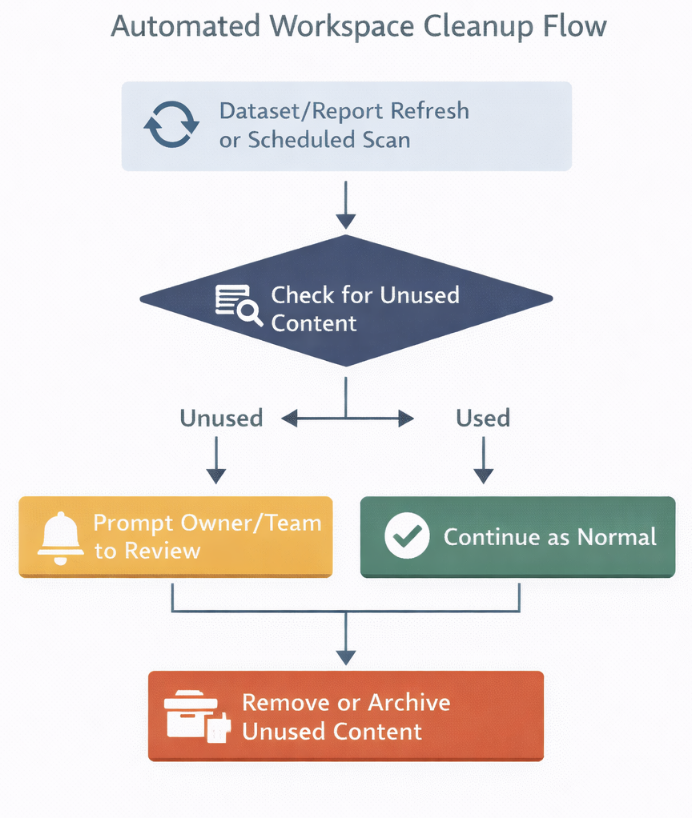
This is where automation can actually help in a very practical way. You can set up a scheduled flow that scans the workspace and checks when each report or dataset was last used. If something hasn’t been accessed for a defined period, it gets flagged.
From there, you introduce a simple process. Notify the owner, mark the asset for review, and give a window to respond. If there’s no response, you move it to an archive workspace or clean it up based on your rules. Now, cleanup is no longer dependent on someone remembering to do it. It becomes part of how the workspace maintains itself.
Closing thought
If you’re starting with Power Automate, it’s easy to focus on small wins like alerts, notifications, or saving a few manual steps. That’s useful, but it doesn’t really change how your BI environment behaves. The bigger value comes when automation starts handling the things that usually depend on someone remembering to check, fix, or clean up.
Instead of asking what I can automate, it’s better to look at what keeps repeating in your environment. Unused datasets, trust issues, lack of prioritization, and cluttered workspaces. When you start building flows around these, you’re not just automating tasks; you’re putting structure into the system itself. That’s where Power Automate actually starts to make a difference.
Also, that being said, creating a flow in Power Automate is quite easy. You don’t need separate training for it. But once you start building multiple flows, it’s worth stepping back and asking which ones are actually solving meaningful problems for your team. Over time, it’s not just about adding more automation. It’s about decluttering your setup and focusing on what truly makes a difference.
Comments
Join the discussion below (GitHub login required), or share your thoughts on LinkedIn . I’m most active there.